






POWERPOINT AND EXCEL FORMATTING
Make Perfect PowerPoint and Excel Formatting Effortless
Arrange elements, apply branding, and scan for presentation errors across Excel and PowerPoint with a few clicks. So you can focus on analysis, not formatting.
Reclaim Formatting Time
One click applies perfect formatting and approved branding across slides, tables, and charts. So you can focus on the work itself – not how it’s presented.
Present With Confidence
Every deliverable reflects the high standards of your firm. Clients remember the insights, not misaligned shapes or mismatched fonts.
Get Director Sign-Off Faster
Anyone can build a slide, chart, or table like a seasoned professional. Materials are perfectly presented by default – no formatting feedback needed.






Easy Formatting. Faster Delivery. Flawless Quality.
Achieve Perfect Formatting 50% Faster
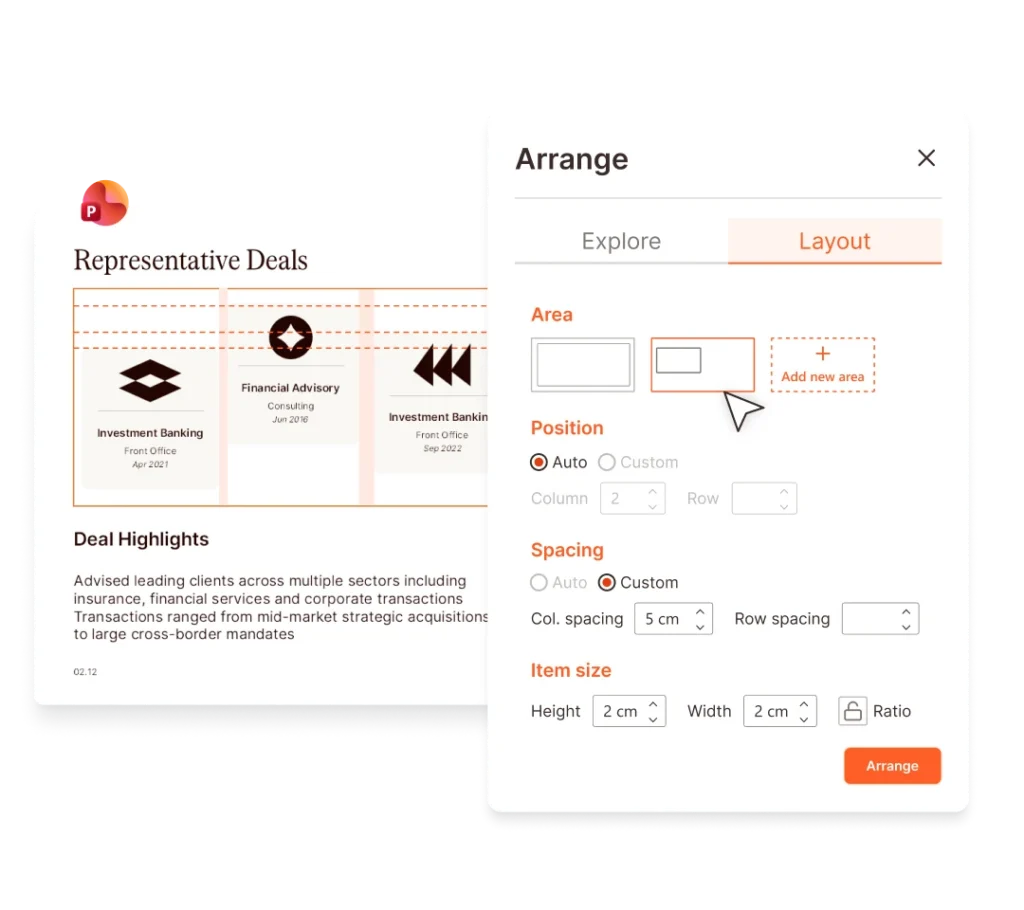
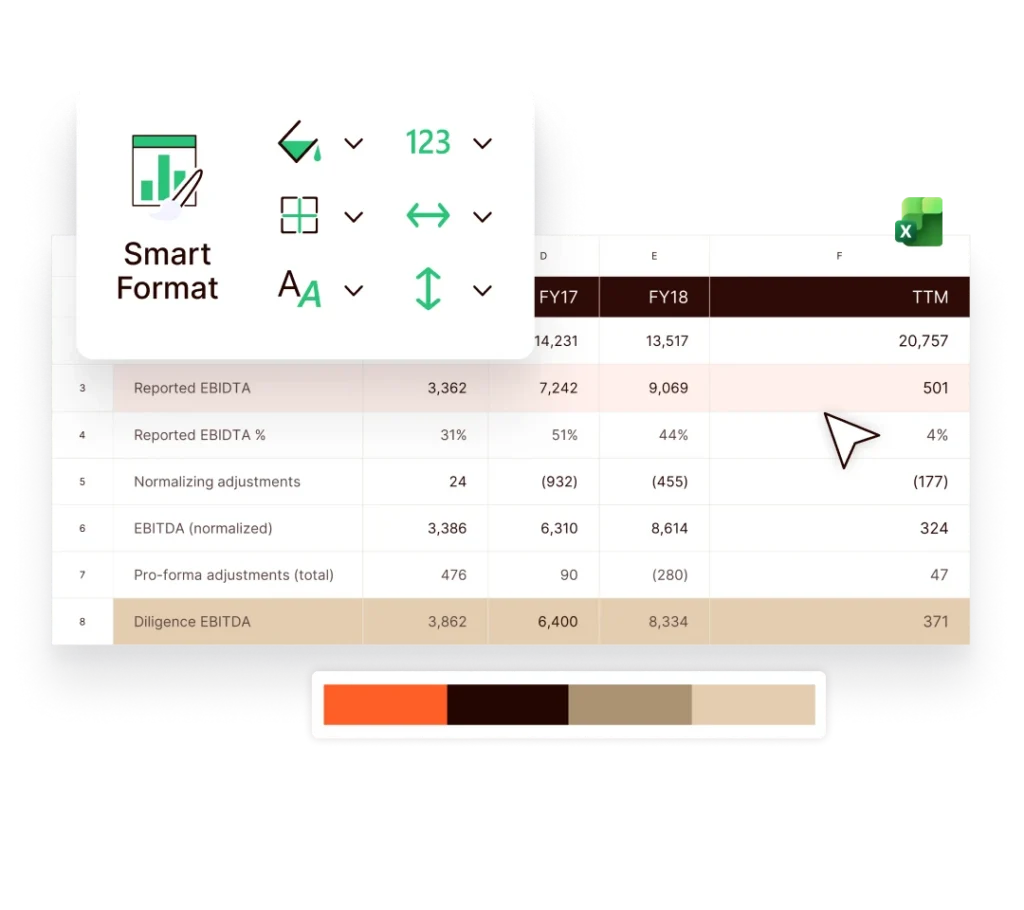
Use Smart Format to adjust number styles, column widths, and line heights in seconds across an entire Excel table or a single line. Use one-click PowerPoint tools to automatically arrange text boxes or icons, adjust textbox margins, redirect overflowing text to selected placeholders, or apply brand styles to tables.
Every tool is integrated in your PowerPoint and Excel toolbars – making client-ready formatting fast and intuitive for everyone.
Apply Branding With One Click
Apply marketing-approved colours, fonts, and dimensions to waterfall charts, pie charts, and pivot tables across your financial models and projections instantly.
In PowerPoint, match formatting between elements, and apply brand styles to tables in seconds, across your slides.

Build Polished, Review-Ready Deliverables First Time
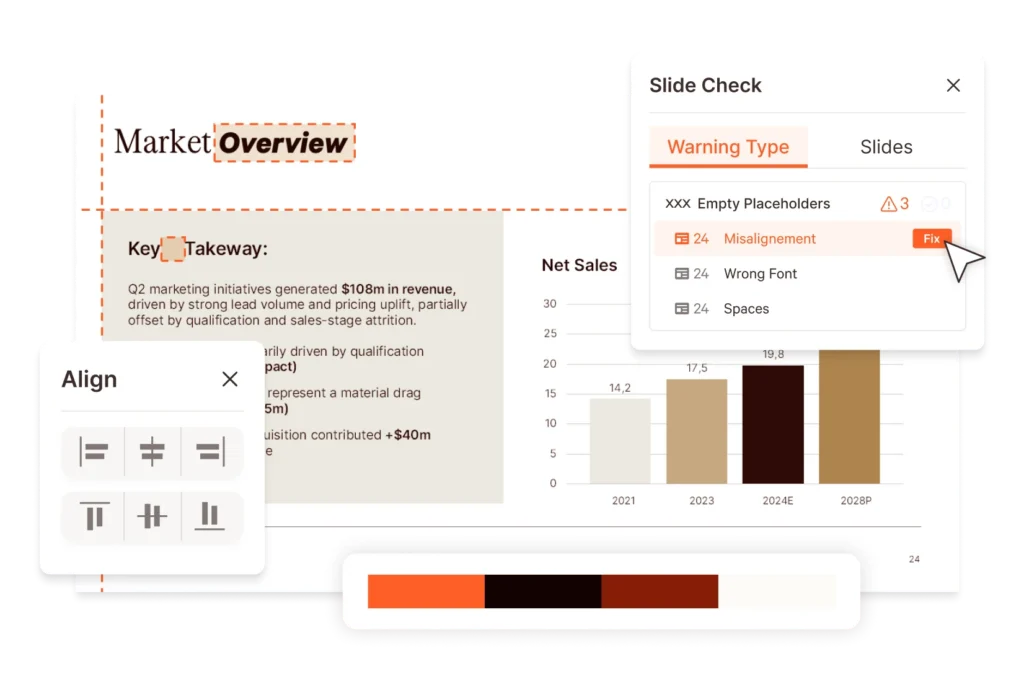
Once your slides are built and formatted, use AI reviewing tools to scan for misaligned shapes, off-brand fonts, narrative inconsistencies or miscalculations in tables. With a clear, actionable list of issues to address, you’ll reduce review rounds and speed up deliverable sign-off.
End-to-End PowerPoint and Excel Formatting Features
Smart Painter
Instantly apply the specific format or position of one element to another in your PowerPoint presentation.
Swap
Pre-formatted, up-to-date tombstones and case studies for completed transactions. Teams use custom filters to find relevant credentials fast.
Smart Format
Instantly apply your company’s branded formatting to Excel tables and charts with a single click.
Custom Font
Ensure your firm’s approved typography is automatically applied in Excel so all spreadsheets stay consistent with your brand.
Arrange
Perfectly arrange text boxes, icons and shapes on your slides in just a few clicks.
Custom Shapes
Instantly insert perfectly formatted, customized shapes into your PowerPoint slides.
Smart Align
Perfectly arrange text boxes, icons and shapes on your slides in just a few clicks.
Arrange
Quickly align selected objects to a specific reference point within your slides.
Font Switcher
Swap between your template’s body and heading fonts with ease.
Select Similar Shapes
Automatically select shapes with similar dimensions or colors for more efficient formatting.
Custom Bullets
Quickly apply pre-set and brand-compliant bullet styles within a paragraph in PowerPoint.
Custom Margins
Finetune margins within textboxes or shapes for more efficient text formatting.
Shape and Table Styles
Apply customized formatting to PowerPoint tables and shapes in
one click.
Same Size
Replicate the size between any two shapes on your slide.
Text Overflow
When a placeholder fills up with text, automatically direct it to a specific destination on the same slide or the next one. No copy-pasting needed.
Brand compliance
Make On-Brand the Default for Everyone
With brand standards built into every template, checked automatically, and enforced across PowerPoint, Excel, Word, and Outlook, teams create faster – and the brand police get a day off.
Excellence, Made Repeatable

UpSlide has so many features that help me produce flawless, on-brand deliverables, whilst working more productively in Microsoft 365 – Templates, Smart Painter and Arrange are just a few of these.

Ignacio Iglesias de Ussel,
IB Associate,
Clearwater International

The ability to format the line styles and numbers according to our branding and specific needs is very helpful. UpSlide makes it easier to maintain consistency between different reports.

Erin Sutton,
Operations Manager,
PKF Australia

Before UpSlide, we’d have to painstakingly update graphs and tables to comply with our brand guidelines. With UpSlide’s Smart Format, we can apply our brand formatting to any graph or table with a single click. I love it!

Jennifer Bailey,
Operations Manager,
Colliers Valuation & Advisory Services
Don’t Lose Business to Poor Formatting
Make room for better insights, accelerate deliverable creation, and guarantee flawless formatting in every deliverable.
FAQs
How Does this Compare to Native Microsoft Functionality?
We built UpSlide features to answer the specific needs of finance professionals working heavily in Microsoft 365. While Microsoft offers an array of brilliant native functionality for formatting tables, charts, and objects in Excel and PowerPoint, we provide a much more extensive range of formatting features, structured for the needs of financial services teams creating client-facing deliverables at scale. Our formatting capabilities are also constantly evolving based on client feedback in the field.
UpSlide’s PowerPoint and Excel formatting Features offer an enterprise-wide solution to build brand-compliant, high-quality tables, charts, and slides in just a few clicks.
Can UpSlide Be Customized to our Firm's Brand Guidelines?
Yes. During implementation, our consultants configure UpSlide to your firm’s exact brand standards – colors, fonts, table styles, and custom shapes – so everything your team produces is on-brand by default.
What Excel Formatting Tasks Can UpSlide Automate?
UpSlide helps automate many of the repetitive formatting tasks that professionals perform in Excel every day. With just a few clicks, users can standardize fonts, colors, and number formats across a spreadsheet, align tables and columns, and apply corporate styles consistently. The tool can also help structure financial tables and automatically format charts so that spreadsheets are clear, professional, and aligned with company standards.
What PowerPoint Formatting Tools Does UpSlide Offer?
UpSlide provides a range of tools that make it faster and easier to format PowerPoint slides. Users can quickly align and distribute objects, resize and position elements precisely, and apply consistent formatting across slides. The add-in also makes it simple to insert branded shapes, icons, and other visual elements, helping teams create polished, on-brand presentations more efficiently.
Do Users Need training to Use UpSlide?
Most users can start using UpSlide immediately. The tools are built into the Office ribbon and designed to be intuitive. However, we also provide onboarding and regular training sessions to help teams adopt best practices.
How Much Does UpSlide Cost?
UpSlide prices depend on the number of licenses you require, the options you want and your setup model. If you want to know how much UpSlide would cost for you, please get in touch with us, and our team will be happy to give you a personalized quote.
How is UpSlide Deployed Across an Organization?
UpSlide can be deployed centrally by IT teams using common enterprise software distribution tools. Because it installs as a Microsoft 365 add-in, it integrates directly into Excel, PowerPoint, Outlook and Word without requiring users to change their existing workflow. Organizations can deploy UpSlide across entire departments or gradually roll it out to specific teams.
What Support Is Available During and After Implementation?
UpSlide provides support throughout the implementation process and beyond. This typically includes configuration guidance, onboarding assistance, and training resources to help teams adopt the tools quickly. Ongoing support is also available to address technical questions and help organizations get the most value from the platform.