


Welcome to UpSlide’s winter round-up! We’ve kickstarted 2022 with some great new features and improvements, from enabling one-click formatting of PowerPoint tables to making your Table of Contents options more accessible.
Quickly Access Your Table of Contents Options
As mentioned in our Autumn round-up, we’ve been improving our valued Table of Contents feature to provide you with more control over your presentation set-up.
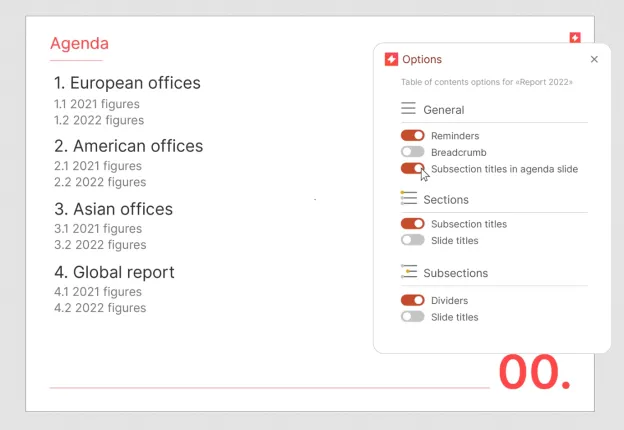
We recently added a new Options button to the UpSlide ribbon, which, when clicked, will open a user-friendly pane where you can access all of your Table of Contents options.
Within this pane, you can easily choose whether or not breadcrumbs, subsection titles, slide titles and more are included in your presentation.
This update provides you with the flexibility to choose, on a case-by-case basis, whether or not you want these options visible in your presentation.
Apply Formatting to PowerPoint Tables in One Click
UpSlide’s PowerPoint formatting features make it easy for you to produce flawless presentations.
You may have been using our Styles button, which enables you to quickly apply pre-set formatting to a text box. We wanted to advance this feature so that you can apply formatting to existing tables in your presentation with a dedicated button.
Plus, if you have a specific table format that you use regularly, you can save it as one of your Table Styles and apply it whenever necessary.
This one-click formatting will help to ensure that all aspects of your slides remain brand-compliant.
Need to refresh your knowledge of our other PowerPoint formatting features? Click here.

Receive Library Content Suggestions From Users
As a Content Library admin, the goal is to ensure that it’s as comprehensive and up-to-date as possible to get maximum usage out of the Library.
However, when working in a large company with endless folders of content, it can be challenging to keep track of which materials need updating, and to get feedback from the people using the Library.
We’re releasing a new feature that will allow admins to receive content feedback and requests from users, all from within PowerPoint.
Say, for example, one of your internal experts notices an outdated figure in a Library slide. They will now be able to make the change directly, then send their suggestion to you from PowerPoint. You will receive a notification in the Library pane detailing their feedback, and you can either accept or reject it.
This update will save you time as you’ll no longer have to liaise with the users to receive their requests or make the content changes yourself. Plus, it ultimately improves the quality of content as it makes it easier for busy users to give valuable feedback.
This feature is still being finalized. It’s available for all administrators, but we will continue working on it until we get it just right. If you want to become an official beta tester for this feature and help shape its future development, reach out to your consultant to register your interest.

Gain Easy Access to the Excel Theme Manager
We’ve made it much easier to manage your Excel themes via an accessible pop-up window than can be opened from your UpSlide ribbon.
By simply clicking on ‘Theme’, then ‘Edit Theme Library’, you’ll open a pop-up window that will enable you to create, edit, delete, reorder and rename your Excel themes in a few clicks.
Read this support article if you need further advice on managing your Smart Format themes.
Easily Accept or Reject License Requests
Last year, we introduced our brand new UpSlide Account Portal to give admins more control over the set-up of their UpSlide account.
Since then, we’ve given it a revamp and added extra functionality to make your life easier.
We’ve recently created a new page in the Portal for admins to review all license requests made by users. Now, if a user tries to activate UpSlide but has not yet been assigned a license – you’ll see a notification on the top left-hand corner next to ‘Requests.’
Admins can then choose to accept or decline the request if needed within a few clicks, making license management much smoother.
Find out what else you can do in our Account Portal.

We’ll be back next season with more exciting updates and improvements. Be sure to subscribe to our newsletter and follow us on LinkedIn so you never miss a trick.
