








With our brand new Excel features, you will be able to format cells and charts in seconds, easily navigate large workbooks and enjoy six new modeling tools. We are very excited to share this new release with you!
Workbook Explorer
Dealing with so many sheets that you can hardly get your bearings in an Excel workbook?
Not anymore! UpSlide now allows you to easily navigate through your Excel sheets and workbooks .
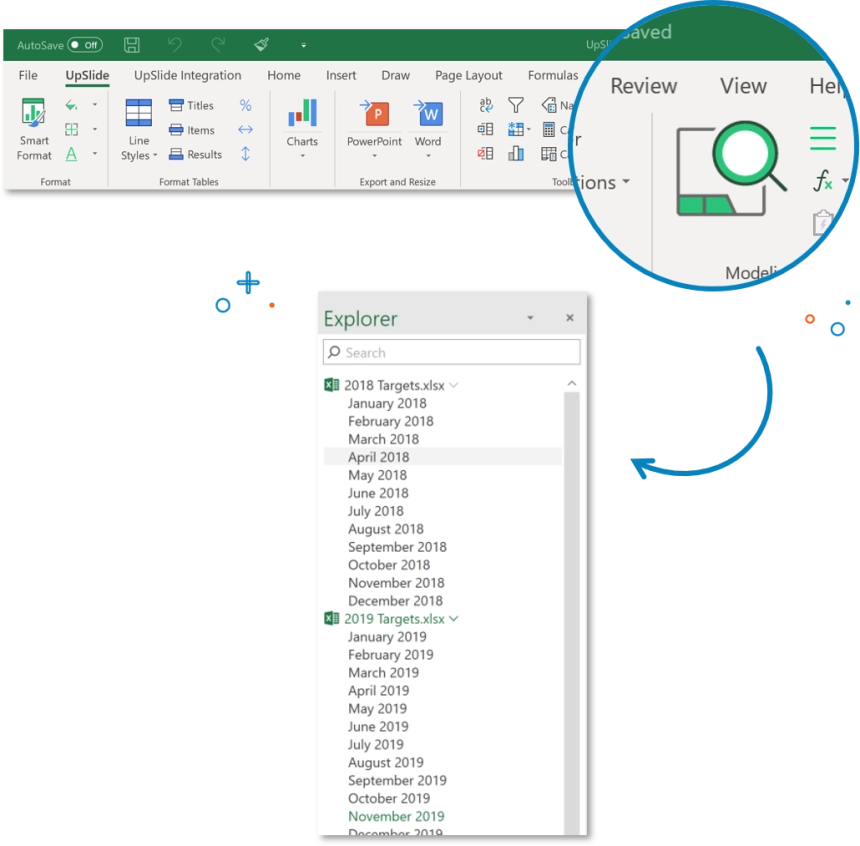
This first version is focused on navigation but we think it can be used for much more! For example:
- Marking sheets as favorites for quick access
- Worksheet editing (renaming, hiding and deleting)
- Switching between two worksheets as you would with Alt + Tab
We will keep you updated about the upcoming improvements!
Cell and Chart Formatting
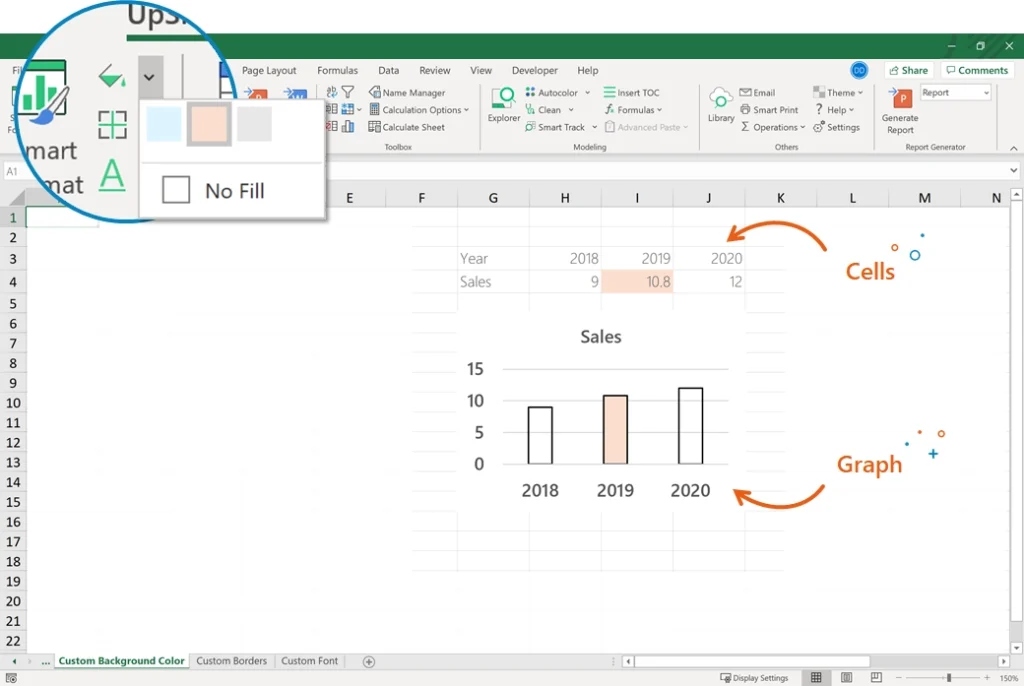
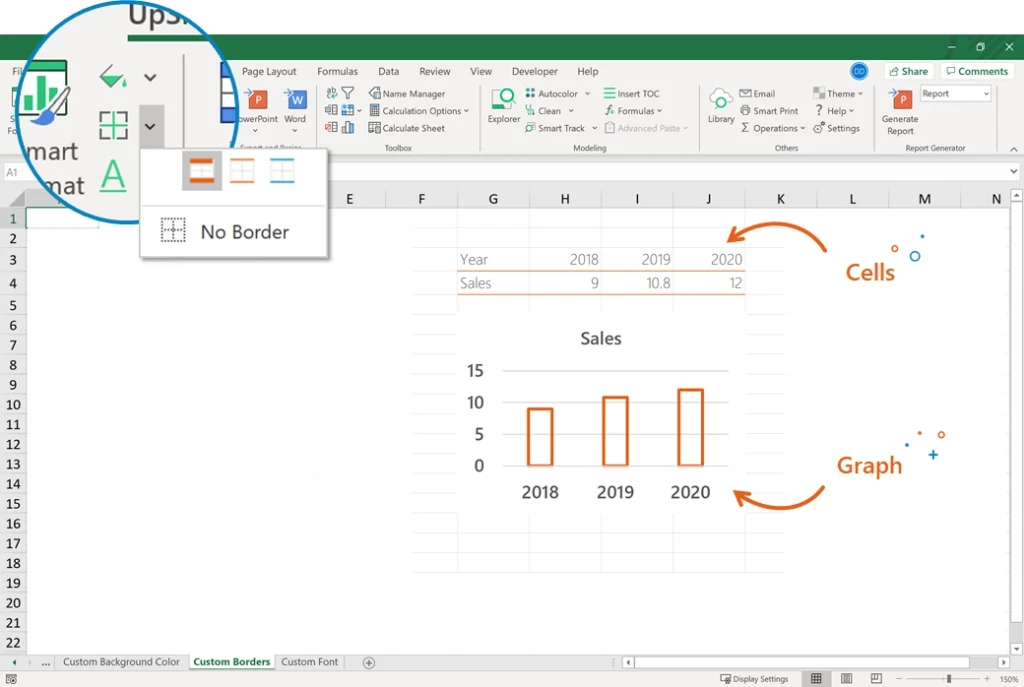
Our formatting tools in Excel had a long-standing limitation – you couldn’t preview the formatting. This was particularly annoying when going through all recommended border formats.
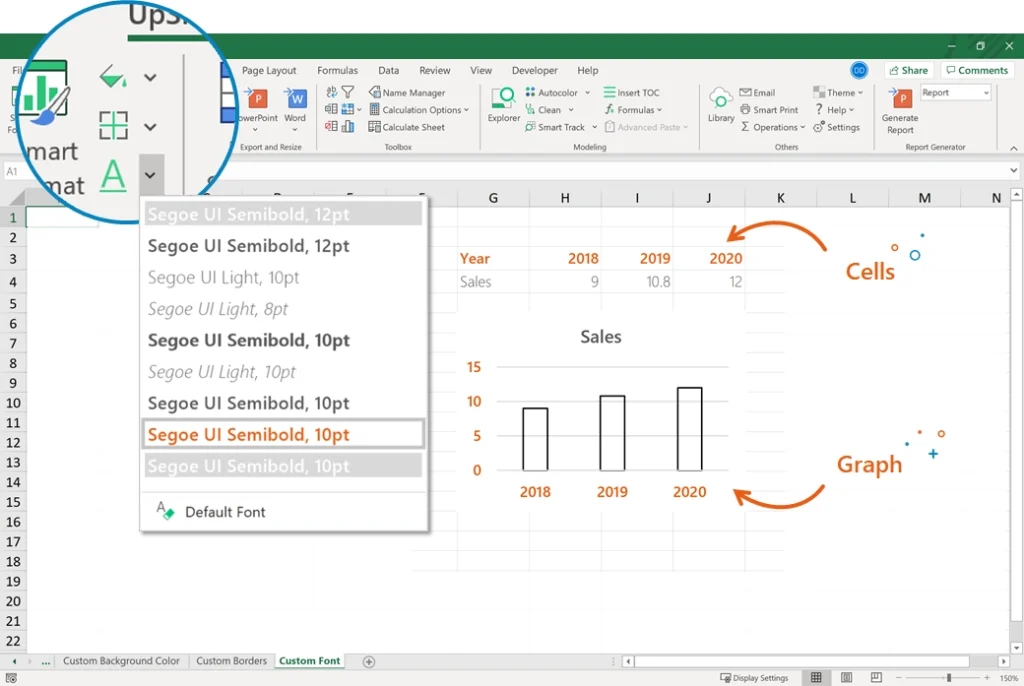
We have kept the button to flick through all the available background colors and borders, but we also added:
- A button to apply recommended font formats
- A preview for all available formatting
- Oh and one last thing … these buttons now work on charts too!
Customize cells and charts in a few clicks with your company’s colors, borders or font style.
Custom Background Color:
Custom Borders:
Custom Font:
Fast Fill
If you’re like us, you do not use your mouse in Excel . But how do you fill rows or columns until the end of your table without the fill handle?
Use our Fast Fill Right (Ctrl + Alt + R) or Fast Fill Down (Ctrl + Alt + D) to save precious clicks and keystrokes when distributing content across cells.
Advanced Paste Features
For you model builders out there, we added some long-requested features!
Say hello to or four new Paste functions :
- Copy Height
- Copy Number Format Only
- Preserve Formulas
- Duplicate Formulas
The first two are quite self-explanatory. The Copy Height feature allows you to copy the row height of a cell and apply it to the cell or table row of your choice. The Copy Number Format Only will only apply the number format of a cell/range to another cell/range without other formatting parameters (font, border, background, etc.).
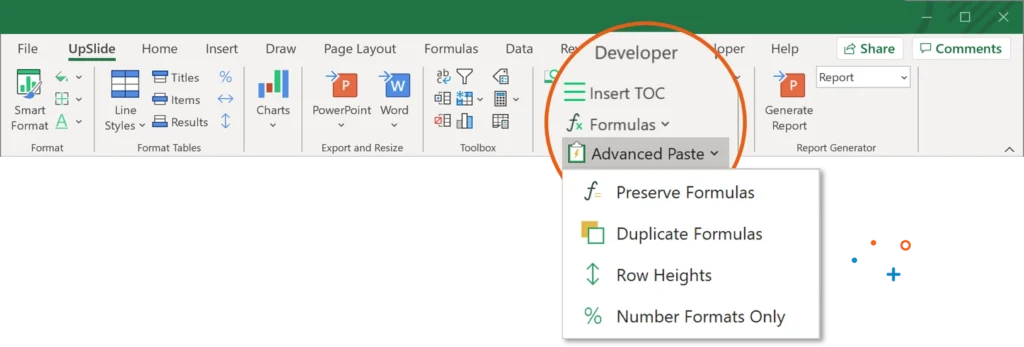
Now let’s take a closer look at the other ones! The last two add flexibility to the Paste Special function, breaking Excel’s native limitations. They were initially requested by Finance 3.1 consultants, our sister company, who are heavy model builders and frequently had to copy and paste the exact formulas’ texts when designing models. Even if $ signs have not been properly set up, you can copy your table. The formulas of the new table will use your hypothesis cells!
So, when would this be useful?
Imagine you needed to copy and paste a specific table which is linked to another cell range or table – the Preserve Formulas and Duplicate Formulas functions would allow you to do this without losing the reference to the other cell range/table (without setting the dollar signs). By preserving the formulas you will be copying the exact formulas from the original table (the exact same text in the cells). The duplicate formulas function, on the other hand, will adapt the formulas to the copied table (like a native Excel paste, but keeping the link with the external cells).
Want to learn more about these new features? Read the detailed guides on UpSlide’s support website.