


Welcome to the 2025 Q3 feature round-up. We’re thrilled to share our latest product updates with you. From two new features that will transform the way you work in Excel to the improved Logo Finder and updated Smart Track, your Q4 just got a whole lot more productive.
New Features
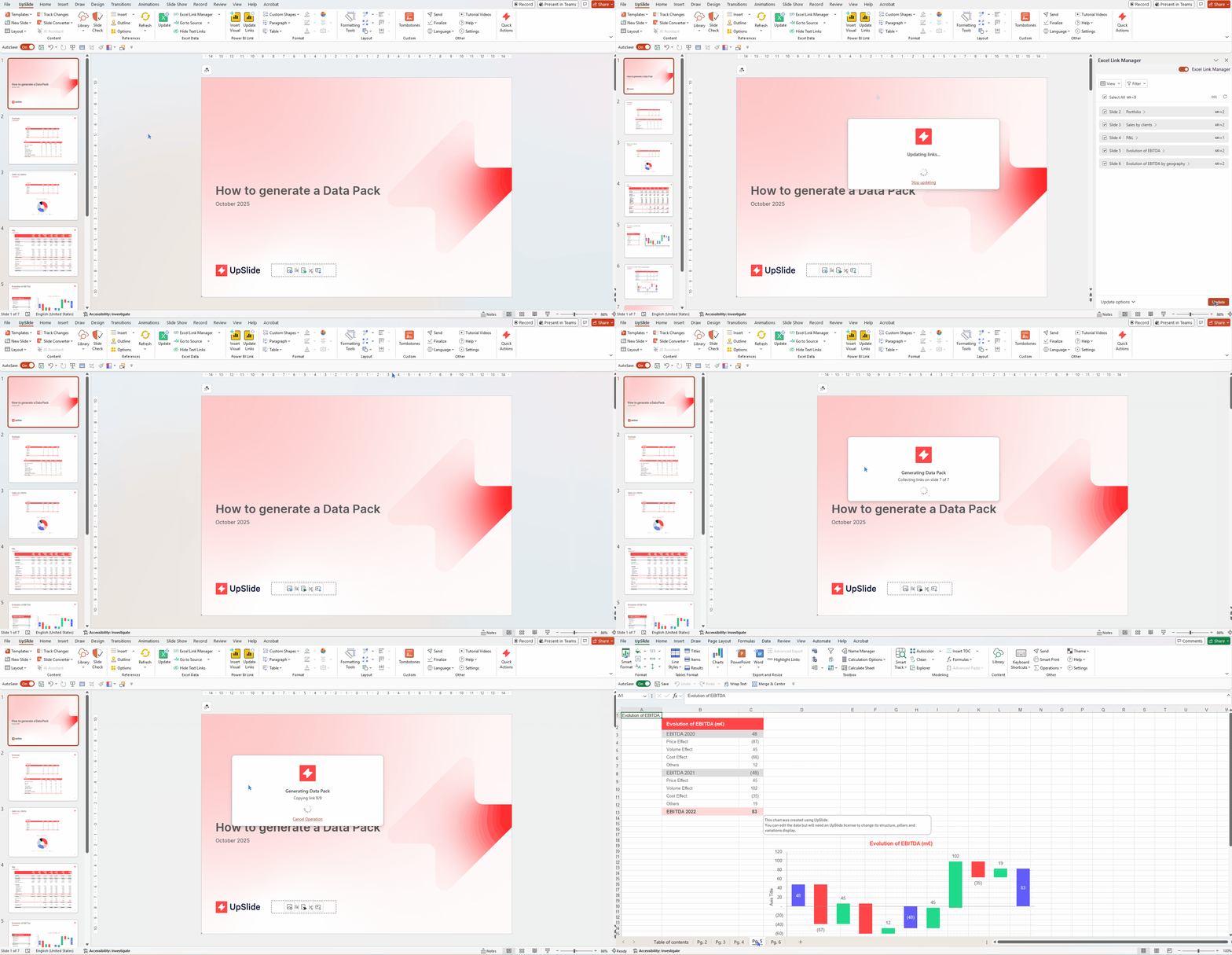
Instantly Generate a Complete, Organized Data Pack
Building data packs can be time-consuming and tedious. Users are required to manually locate data from various files, format tables, and turn formulas into hard-coded values.
The new Data Pack feature streamlines this process. In one click, all embedded Excel links (except text links) are exported into a workbook and organized slide-by-slide, ready to share with clients.
In your Data Pack you’ll find:
- A table of contents
- Links organized slide-by-slide
- All cells that reference external tables, pasted as values
- All cells that reference internal tables, kept as formulas
It’s an easy way to protect confidentiality without sacrificing accuracy.
See Data Pack in action
Instantly Catch Every Spreadsheet Inconsistency with Formula Audit
Speed and accuracy are vital when validating large Excel models, and native error flags or manual checks can only go so far.
That is why we developed Formula Audit. Formula Audit quickly highlights inconsistencies across your workbook in real time, helping you detect risks and confirm logic as you build. With Formula Audit, consistent formulas are displayed with matching line patterns. When a cell’s pattern differs from its neighbor, you’ll instantly see that something needs checking, whether it’s an inconsistency or potential error.

How is Formula Audit different from Smart Track?
Smart Track is designed for mapping cell relationships, visually showing how cells are connected.
Formula Audit, on the other hand, focuses on checking consistency across formulas in selected cell ranges, immediately flagging any differences for quick review. This ensures you see not just connections between cells, but also where formula logic may diverge, helping you catch issues more efficiently.

Feature Updates
Insert Multiple Logos Into Your Deck With Updated Logo Finder
Sourcing logos without leaving PowerPoint is one of the reasons Logo Finder is so popular among UpSlide users. But with the latest update, you can now search for and insert multiple logos faster.

Whether you’re building a competition landscape from a list of buyers or competitors in Excel or Outlook, or preparing a client deck using names sent by a senior, now you can paste these lists directly into Logo Finder. UpSlide will automatically select and insert the first matching logos, cutting down on deliverable creation time.
Did you know?
Logo Finder enables you to select which version of a company logo to include, for example, with a transparent background. All logos are high-resolution, up-to-date, and can be inserted as a SVG, PNG, or JPG.
Complex Excel Model Flows Made Clear With Updated Smart Track
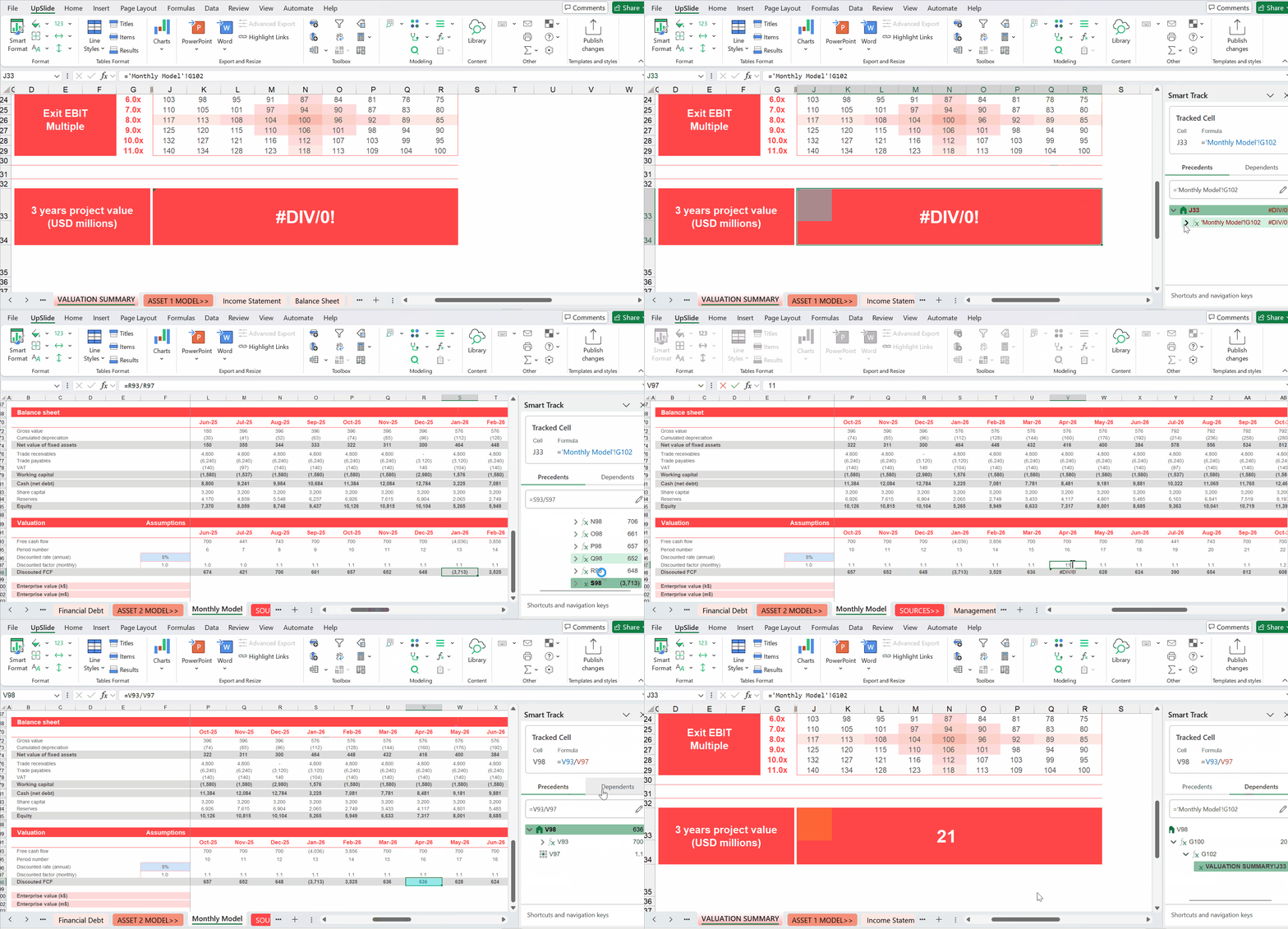
Smart Track just got smarter. Previously, you could trace precedents or dependents for a single cell at a time. With this latest update, you can now audit an entire cell range in one click, making it easier than ever to review complex financial models and pinpoint inconsistencies.
Everything you need is in the Smart Track panel: the currently tracked cell range, the cell range’s values/formulas, and a tree of precedents or dependents with their respective values and formulas.
To help you quickly interpret results, Smart Track uses a clear color-coded visual system:
- Cyan for the last audited cell
- Pink for precedent cells
- Orange for dependent cells
If you click a precedent/dependent in the list, UpSlide will automatically select and display it, even if the range is on another workbook or worksheet.
Smart Track improves on Excel’s native tools by tracing multiple cells simultaneously, rather than one at a time, significantly reducing review time for large models. It’s also easier to interpret, thanks to its dedicated side pane and clear color-coding for precedents and dependents.
Top tip
When using Smart Track, we recommend using keyboard shortcuts to help you navigate the tool and work more efficiently.
See Smart Track in action
Want to Hear More About Our Latest Feature Updates?
Subscribe to our monthly newsletter, ‘The Short Cut’, to stay updated with our latest product developments and feature improvements. You will also be the first to be invited to exclusive UpSlide webinars and events.